Time to complete: ~0.5-1 hours
most-ly Navigating Terminal, more or less
In today’s episode we’ll be playing with terminal pagers. What is a terminal pager you ask? A terminal pager is a command line program that simply allows you to read text files. To edit files, however, you’ll need a text editor. A pager is great if you are looking for something specific in a file or if you just want to peruse the contents of a file. You can also pipe output to a pager to more closely analyze that output. In addition pagers allow you to search for keywords in files to help speed things along. Pagers get their name because they only output one page’s worth of data at a time.
The three pagers I want to talk about are more, less, and most. On Ubuntu systems less and more are installed by default. However most will need to be manually installed. More is installed by default on most Linux distros, where less, although common, may not be. Most is the rarest of the bunch and will usually require a manual install. Let’s review the differences, and strengths, of each of these commands.
more
We’ll start with more since it is the simplest of the bunch and has the least amount of features. Using it is as easy is calling more in a prompt followed by the filename (or filenames separated by spaces) you wish to examine.
dpaluszek@upskillchallenge:~$ more /etc/ssh/sshd_config
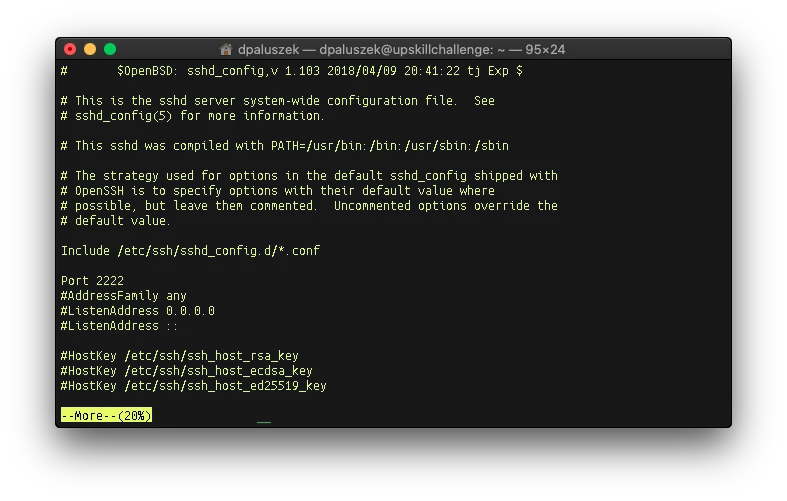
If you will notice more has a little percentage indicator that tells you how much of the file you have read. The following key strokes perform the following actions:
- Space – advance to the next page. The number of lines advanced is equal to the number of lines available in your terminal window.
- f – advance to the next page
- Return – scroll down one line at a time, you can also use
- b – go back a page
- = – display the current line number
- v – start up your default text editor
- :n – go to next file (when you have used more than one file name as an input)
- :p – go to previous file (when you have used more than one file name as an input)
- :f – display current file name and line number
- . – repeat previous command
- /pattern – search the file for the next occurrence of the regex pattern after the slash.
Upon arriving at the end of the file the pager will cease and you’ll be returned to your prompt. This is a very useful command to pipe long output to as you can use the space bar to read the output page by page.
less
The less command is more feature rich than more in that it is equipped with way more bells and whistles but runs faster since each page is loaded one at a time. This command is chock full of goodies. Invoke it the same way you used more.
dpaluszek@upskillchallenge:~$ less /etc/ssh/sshd_config
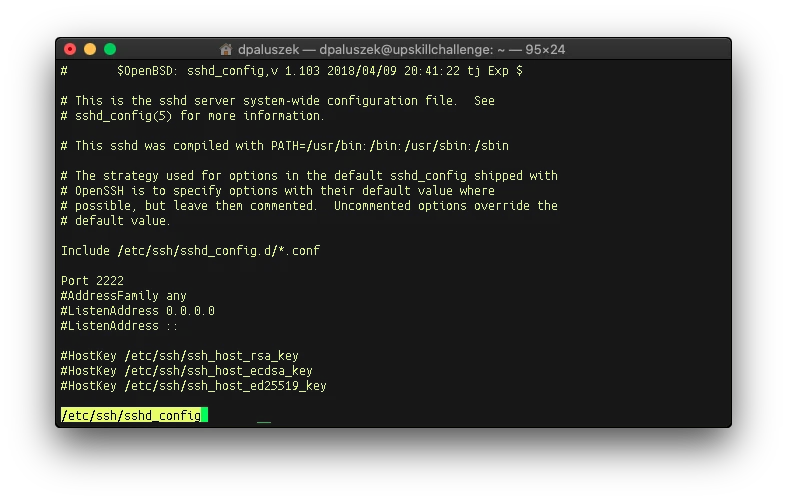
Here’s a sampling of what less can do:
- Space – advance to the next page
- Return – scroll down one line at a time
- d – scroll forward one half of the screen size
- y – scroll backward one line at a time
- b – scroll backward one page
- u – scroll backward one half of the screen size
- left and right arrow – scroll horizontally one half of the screen size
- control + arrow keys – scroll all the way to the left or right
- R – refresh the screen, useful for looking at files that are actively being modified
- g – go to beginning of file
- G – go to end of file
- m – followed by either an uppercase or lowercase letter marks the first displayed line so you can easily get back to it later
- ‘ – followed by either an uppercase or lowercase letter brings you back to the marked line (see above)
- /pattern – search forward in the file for the matching regex
- ?pattern – search backward in the file for the matching regex
This is just a small sampling. You can do really fancy things like find the closing bracket or parentheses from an opening one too. You can also pass the -F switch when invoking less to allow the file to be continually updated in real time as you view it. Good for monitoring log files. See the less man page for more information on all available options.
most
By default the most command isn’t installed on Ubuntu systems. Attempt to run it and you’ll be met with this:
dpaluszek@upskillchallenge:~$ most

Command 'most' not found, but can be installed with:

sudo apt install most
Run the aforementioned apt command (you can review apt usage in Part 4 of this series). Once installed simply invoke most using the same syntax as more and less, passing a filename as a parameter.
dpaluszek@upskillchallenge:~$ most /etc/ssh/sshd_config
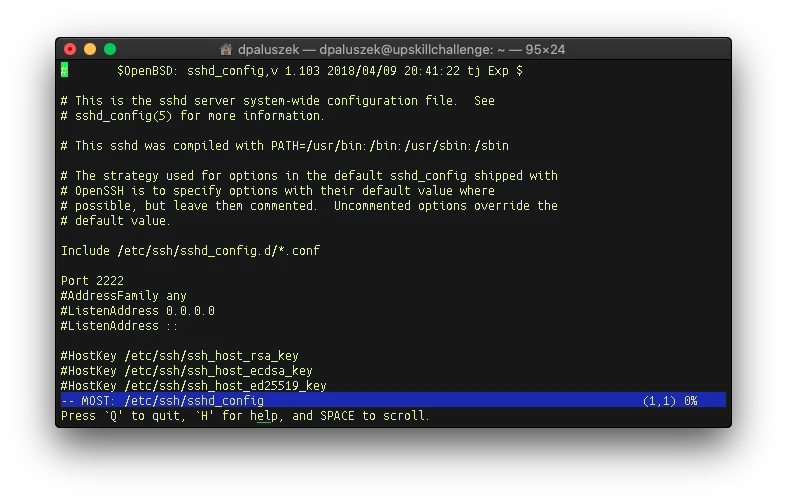
As you can see most issues two useful lines. The first shows the filename currently open and the second offers some assistance. Hitting H for help nets you this useful list:
- SPACE, D – Scroll down one Screen.
- U, DELETE – Scroll Up one screen.
- RETURN, DOWN – Move Down one line.
- UP – Move Up one line.
- T – Goto Top of File.
- B – Goto Bottom of file.
- >, TAB – Scroll Window right
- < – Scroll Window left
- RIGHT – Scroll Window left by 1 column
- LEFT – Scroll Window right by 1 column
- J, G – Goto line.
- % – Goto percent.
Most also allows us to switch between open files on the fly. You can do this by first opening two files with most by passing their filenames to the command. From here you can press :n to bring up a little list of files, using the arrow keys to select which one you wish to switch to, then hitting enter to open it. This is useful in situations where you are, say, reviewing a modified config file against its default.
So far we’ve played with looking at files directly. But what about parsing output from commands? Explore the sshd_config file by using cat and piping it to more, less, and most.
dpaluszek@upskillchallenge:~$ cat /etc/ssh/sshd_config | less
dpaluszek@upskillchallenge:~$ cat /etc/ssh/sshd_config | more
dpaluszek@upskillchallenge:~$ cat /etc/ssh/sshd_config | most
As a bonus let’s go a bit off topic and discuss some terminal tricks and know how.